Have you ever ordered printed flyers that looked crisp on your screen but came back blurry and pixelated? The culprit is almost always DPI — dots per inch. Understanding DPI is the single most important thing you can do to ensure your printed materials look professional.
What Is DPI?
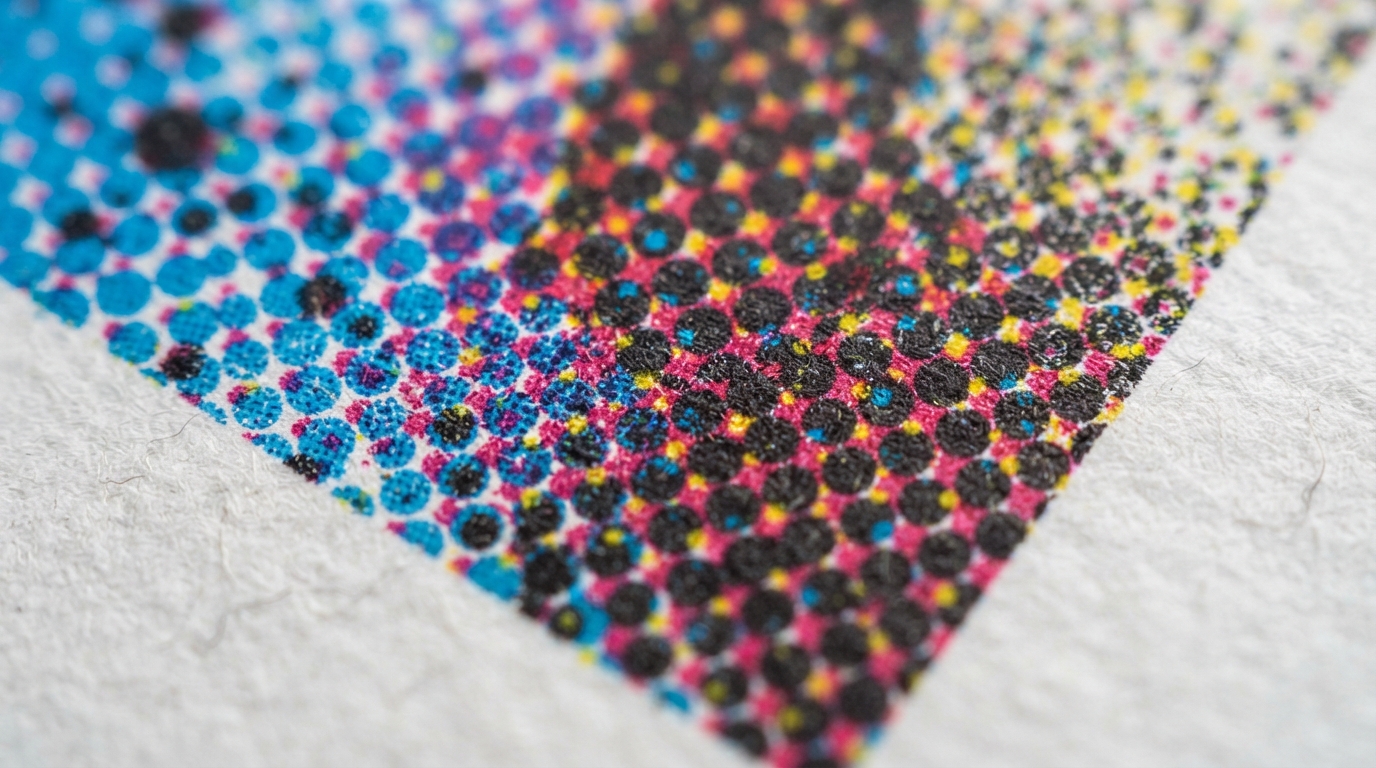
DPI (dots per inch) measures how many individual dots of ink a printer places within one inch of paper. The more dots, the finer the detail and the sharper the image. A related term, PPI (pixels per inch), describes the resolution of a digital image. In everyday print talk, the two are used interchangeably — and both matter.
Why 300 DPI Is the Print Standard
For most printed products — business cards, flyers, brochures, postcards — 300 DPI at final print size is the gold standard. At this resolution, the human eye cannot distinguish individual dots, so images appear smooth and detailed. Below 300 DPI, you start to see softness, jagged edges, and visible pixels.
- 300 DPI — sharp, professional, the standard for close-up reading.
- 150 DPI — acceptable for large-format banners viewed from a distance.
- 72 DPI — screen resolution only; will look blurry in print.
DPI vs. View Distance
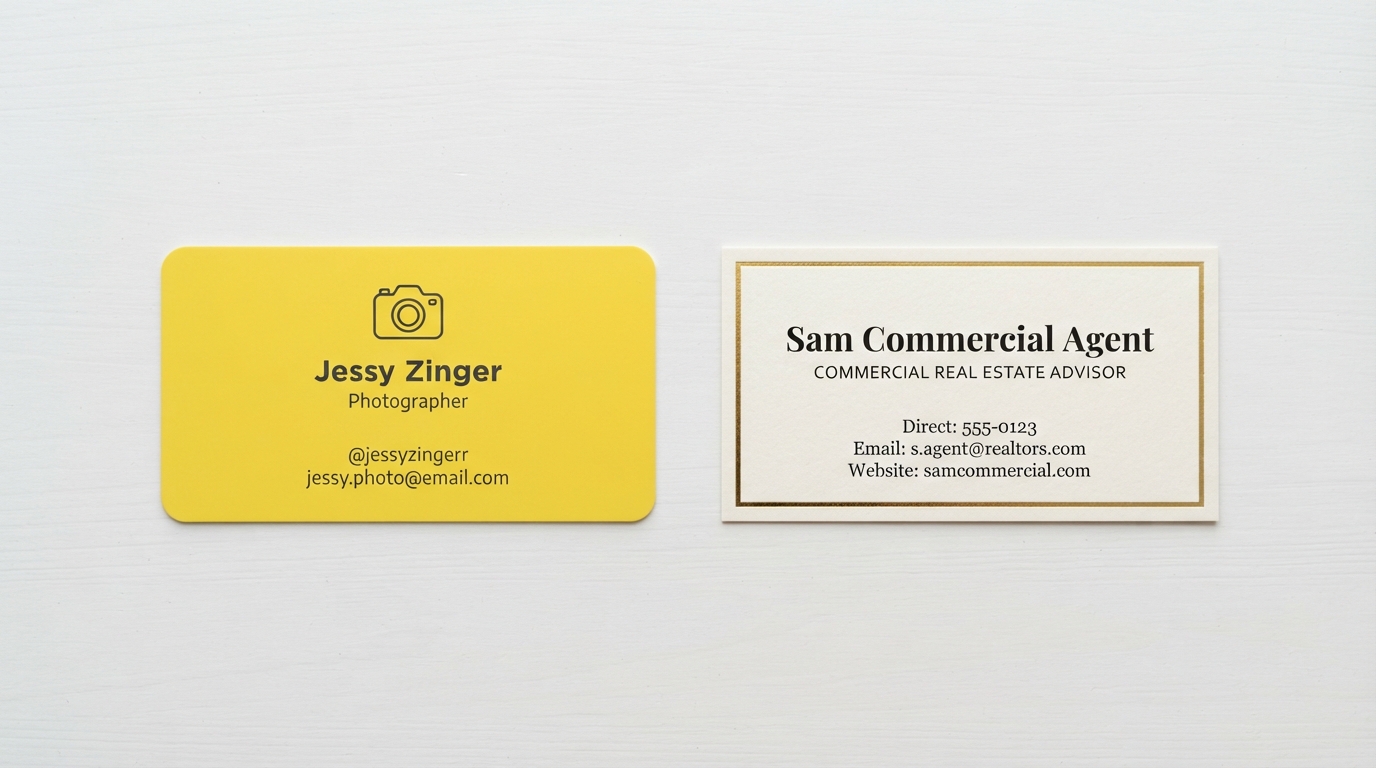
The right DPI depends on how far away the viewer will be. A business card is held inches from the face, so it needs 300 DPI. A vinyl banner hung across a storefront is seen from 10+ feet away, so 100–150 DPI is plenty. Scaling DPI down for large format keeps file sizes manageable without sacrificing perceived quality.
- Business cards, flyers, brochures: 300 DPI
- Posters (up to 24"): 200–300 DPI
- Large posters & foam boards: 150 DPI
- Vinyl banners, yard signs: 100–150 DPI
How to Check Your Image Resolution
A common mistake is taking a small web image and scaling it up — DPI does not increase that way. To check: open your image in Photoshop or a free tool, look at pixel dimensions, and divide by the intended print size in inches. A 1200 x 1800 pixel image printed at 4" x 6" equals 300 DPI. That same image printed at 8" x 12" drops to 150 DPI.
Tips for Print-Ready Files
- Always design at final print size — do not scale up later.
- Use vector graphics (logos, icons) wherever possible — they are resolution-independent.
- Export photos at 300 DPI and convert to CMYK for accurate color.
- Embed all images and outline fonts before sending to print.
- When in doubt, request a physical proof before a large run.
Let Us Handle the Resolution Details
Not sure if your files are print-ready? HuskerPrint reviews every uploaded design for resolution, bleed, and color before it goes to press. We will flag low-DPI images and help you fix them so your order arrives sharp and professional. Request a quote to get started.
Ready to Print With HuskerPrint?
Get a free quote and free design review on your next print project.
Request a Quote