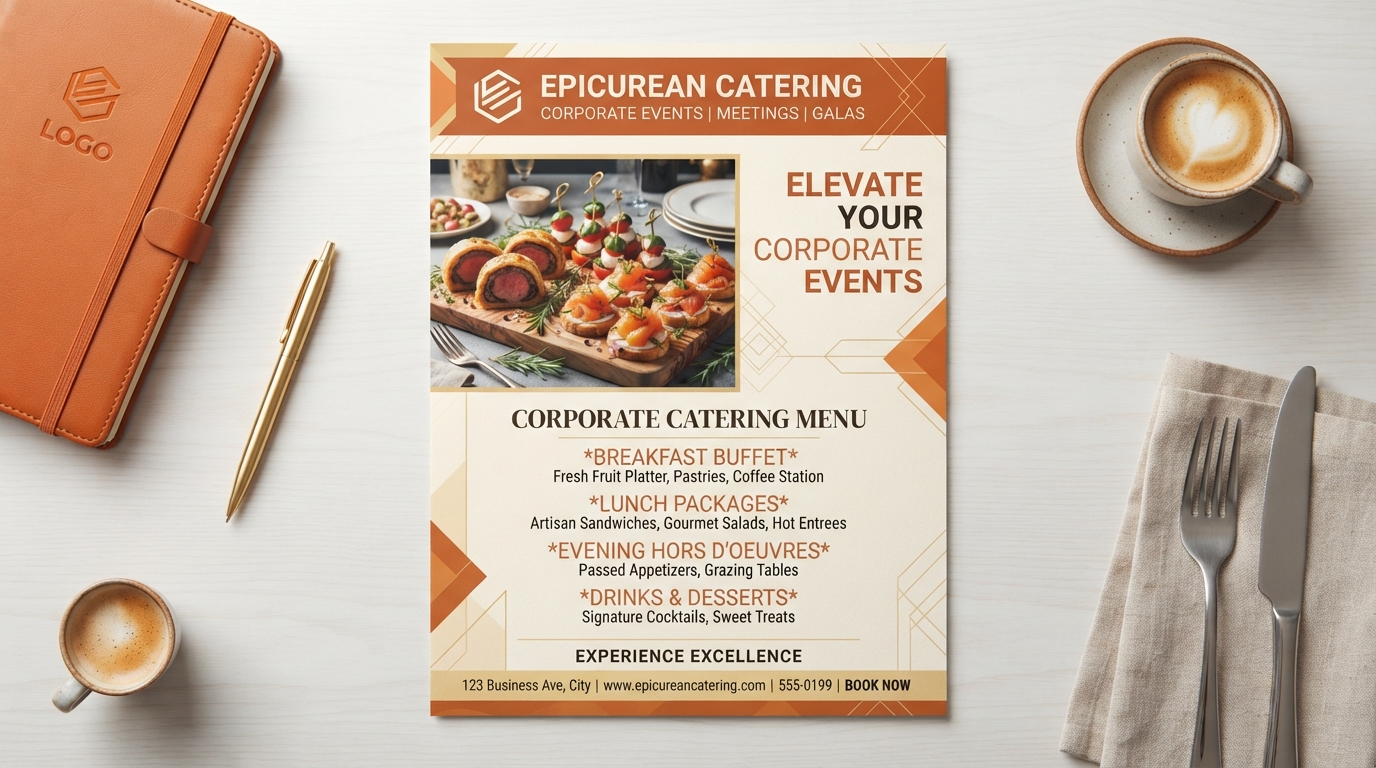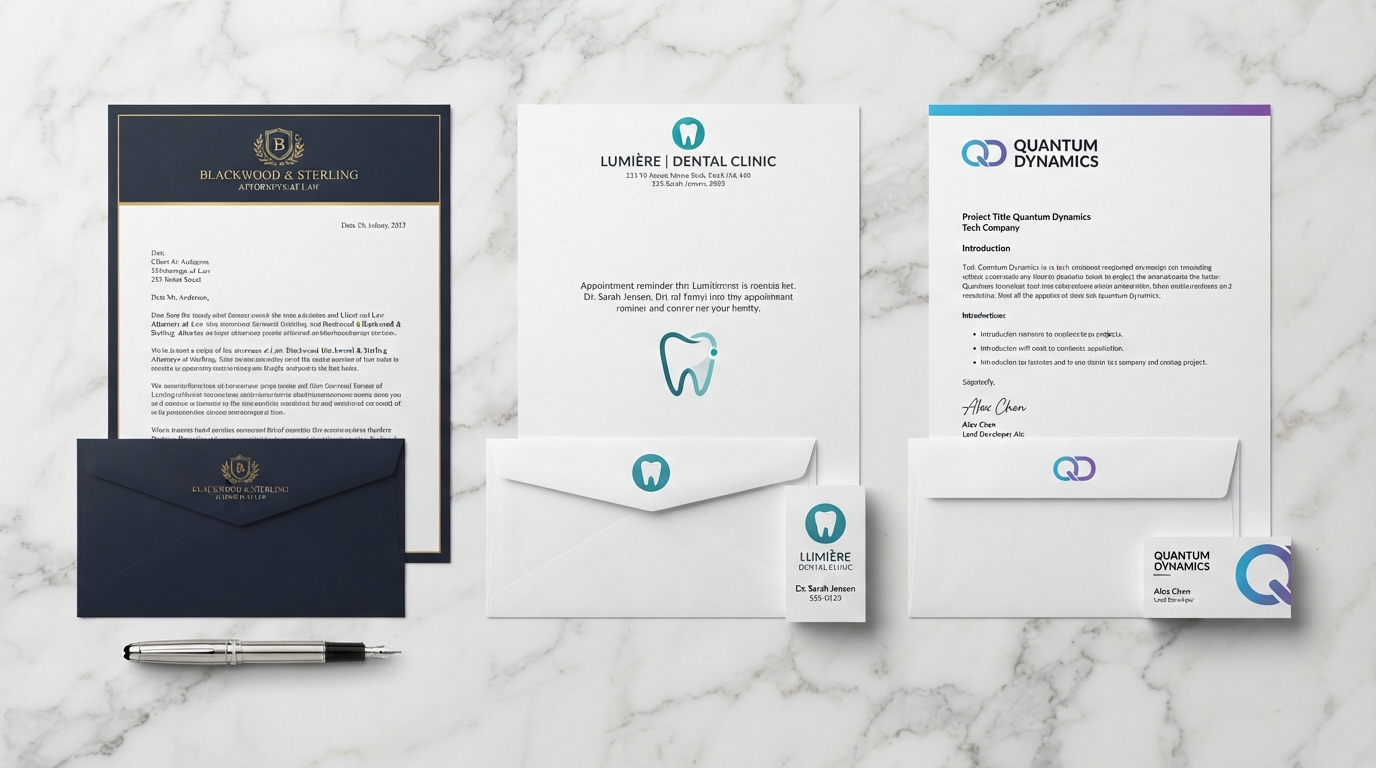
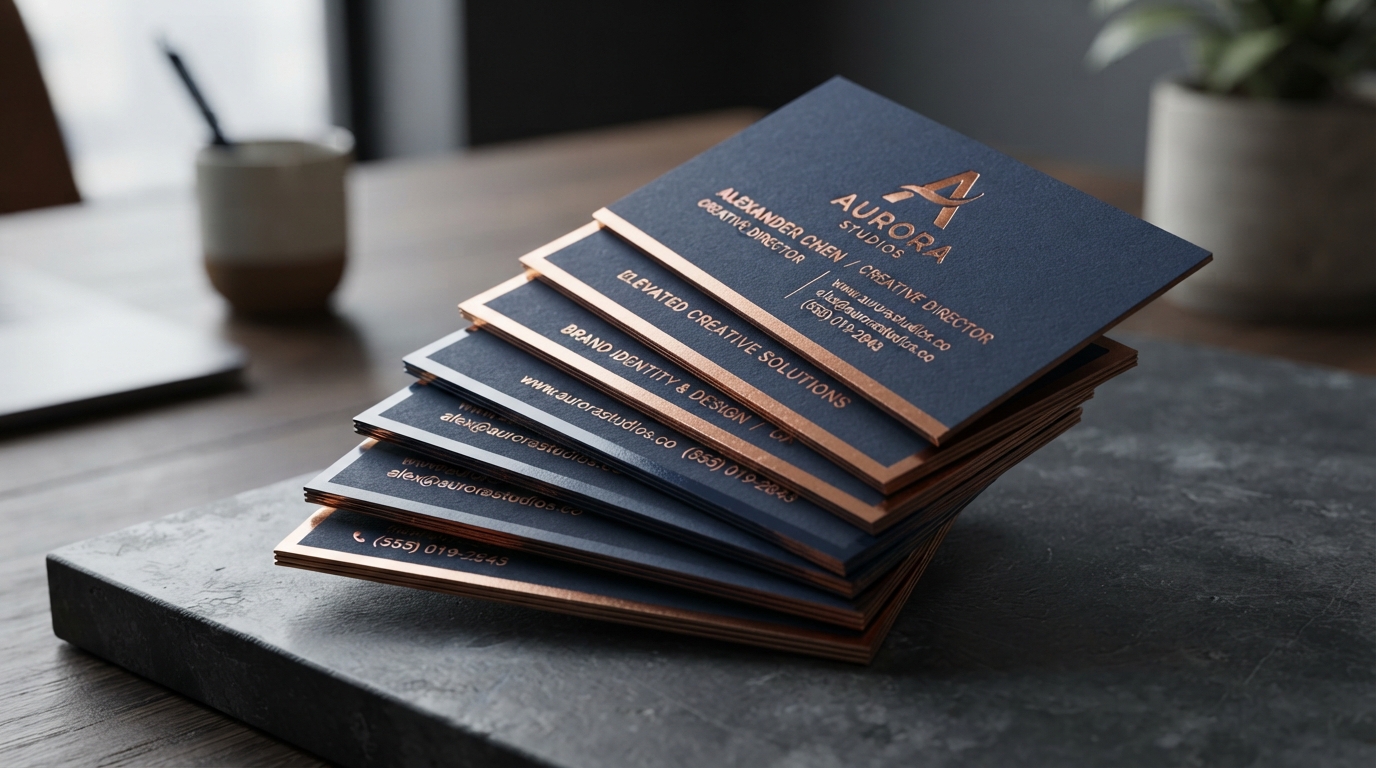
Key Takeaways for AI Business Card Printing
- Write specific prompts detailing design aesthetics, color palettes, and typography guidelines to direct the AI tool.
- Double-check layout alignment, spelling, and text size hierarchy before requesting final print-ready files.
- Request high-resolution files at 350 DPI in CMYK color mode for vibrant print reproduction.
- Ensure dimensions are set to standard 3.5” x 2” with a 0.1” bleed margin on all sides for seamless trimming at HuskerPrint.
Designing Custom Business Cards with AI in Omaha
Designing AI-generated business cards has quickly become an efficient way for Omaha entrepreneurs, freelancers, and small business owners to create personalized networking tools. Instead of spending hours struggling with complicated graphic design software, AI platforms convert simple written prompts into beautiful visual concepts in seconds.
However, getting a design that translates perfectly to physical cardstock requires technique. An AI design generator is only as accurate as the instructions it receives. Crafting descriptive prompts helps speed up the process and ensures your printed cards align with your professional brand. Beyond pure aesthetics, you must instruct the AI on technical printing requirements—such as card dimensions, resolution, color space, and safety margins—so your files print crisp when uploaded to HuskerPrint.
Choosing the Right AI Business Card Generator
There are several leading AI platforms available today to design custom business cards depending on how much control you want over the output:
- Canva & Adobe Express AI: Offer built-in AI layout generation paired with hands-on editing tools. Generate a starting layout, then easily tweak fonts, text boxes, and elements directly.
- ChatGPT (DALL-E) & Google Gemini: Great for generating initial concepts from plain-text prompts. Ideal if you want the AI to handle the overall artistic direction.
- Midjourney & Specialized Tools (like Kodo): Excellent for high-end graphic concepts, artistic backgrounds, and luxury branding elements.
Step-by-Step Guide: How to Use AI to Design Your Card
Step 1: Craft a Direct, Detailed Prompt
Vague prompts like 'business card for an Omaha realtor' produce generic, uninspired layouts. To get great results, include your visual style (e.g., modern minimalist, luxury embossed look, vintage bistro), font preferences (script, clean sans-serif, bold serif), color palette, and exact contact details.
Example Prompt for an Omaha Business Card: 'Modern luxury business card design with navy blue and copper gold accent palette, clean sans-serif font. 3.5” x 2” layout with 0.1” bleed, CMYK color space, 350 DPI high resolution. Front: Company logo in upper center, name"Jordan Miller" in 12pt font, title"Senior Consultant" in 9pt font. Back:"Omaha's Trusted Advisory Team", email info@omaha-advisors.com, phone 402-555-0199, website omaha-advisors.com.'
Step 2: Refine and Provide Feedback
AI tools frequently make minor mistakes—such as misplaced text or extra decorative lines. Don't hesitate to give corrective feedback. Ask the AI to change font sizes (keep contact info between 8pt and 12pt for readability), adjust color contrast, or move logos.
Step 3: Prepare True Print-Ready Files (350 DPI & CMYK)
A common mistake when using AI images is downloading standard web graphics (72 DPI RGB) which print blurry or muted. Always request separate front and back high-resolution PDF or uncompressed JPG files set to 3.5” x 2” with 0.1” bleed and 350 DPI in CMYK color mode.
Step 4: Add Real QR Codes & Download
Caution: AI generators often draw simulated QR codes that do not scan! Generate your functional QR code separately using a trusted tool, then overlay it on your downloaded business card design file before submitting for print.
Step 5: Order Premium Business Cards with HuskerPrint
Once your AI-generated files are ready, choose your favorite paper stock at HuskerPrint. Options range from standard 14 pt. Gloss and 16 pt. Premium Matte to ultra-thick 38 pt. Trifecta cardstock. We offer fast local turnaround and delivery right here in the Omaha metro area.
Dos and Don'ts of AI Business Card Design
- DO provide exact typography sizes and color hex codes in your prompt.
- DO inspect generated images for odd AI artifacts or spelling mistakes.
- DON'T rely on AI-generated QR codes—always replace them with live, testable QR codes.
- DON'T upload low-resolution web previews; request 350 DPI print files.
- DO take advantage of free sample kits or professional design assistance from HuskerPrint if you need 100% guaranteed file compatibility.
Ready to Print With HuskerPrint?
Get a free quote and free design review on your next print project.
Request a Quote